
Identify the kind of black screen
Does it happen immediately after power-on, after closing the lid or while using a particular app? Can you hear audio, see an external display or reproduce the issue at the login screen? These observations narrow the next step without proving a diagnosis.
A completely blank screen, half-black display and visible colored lines should not be treated as interchangeable. Photograph the symptom with another device and note any recent accessory or software changes.
Check simple display conditions
Check power and brightness, then inspect external display power, input selection and cable connections if applicable. Remove nonessential accessories when following Apple’s startup troubleshooting.
If the Mac responds, save work before restarting normally. A forced shutdown can lose unsaved work, so reserve it for an unresponsive machine and follow Apple’s instructions for that situation.
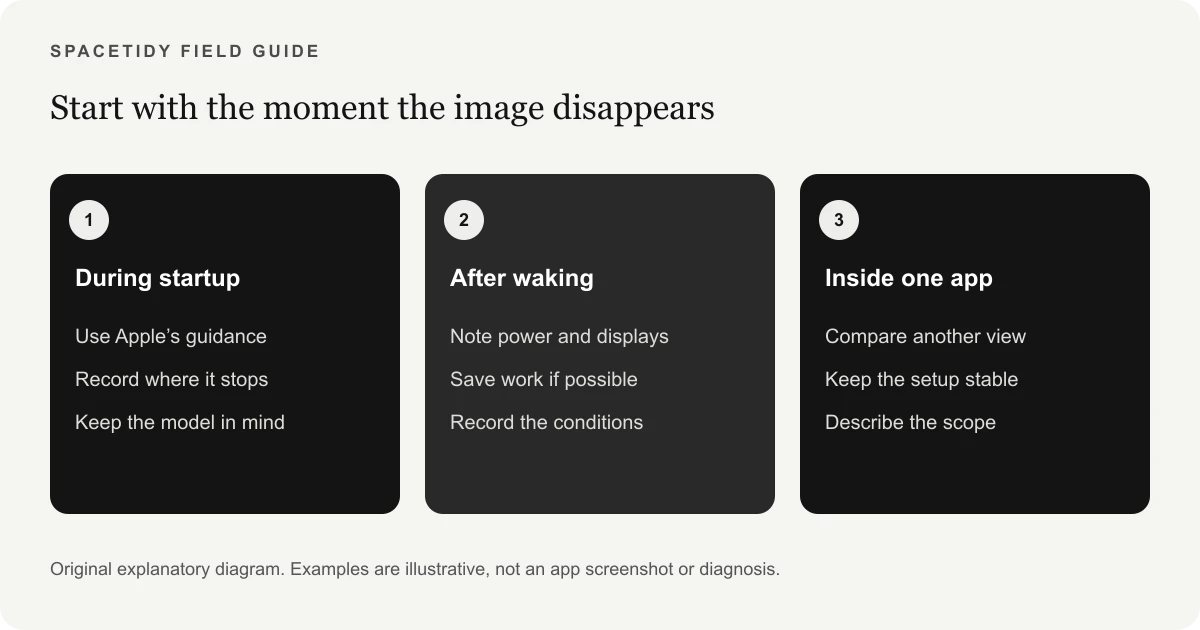
If the screen stays blank during startup
For a blank screen during startup, follow Apple’s Recovery troubleshooting sequence. The guide explains when to use Disk Utility, reinstall macOS or seek further assistance. Follow the instructions for your Mac rather than treating every black screen as the same fault.
Do not jump from a blank screen to erasing the disk. Recovery, firmware and reinstall procedures have different requirements and consequences. If you cannot confidently follow the applicable instructions, get help from Apple Support.
If a display becomes usable, the Apple Diagnostics guide explains the next hardware test. For visible stripes instead of a blank screen, see lines on a MacBook screen.
Distinguish a startup failure from a display that stopped showing an image
The phrase “still running” needs a little context. You might hear a meeting continue, see a keyboard light or notice that an external monitor still responds. Those are useful clues, but they do not all mean the same thing. Describe which activity you can actually verify. If a video call continues while the built-in display is dark, the situation is different from a machine that never shows a startup image. Keep that distinction in your notes before following any troubleshooting sequence.
Timing also matters. Write down whether the image disappears after sleep, after connecting an accessory, after signing in or during one application. Do not assume that two black-screen incidents share a cause simply because they look similar. For a display that remains blank during startup, consult Apple’s blank-screen guidance. For an image that fails only during a particular workflow, collect observations about that workflow. This prevents a general internet checklist from sending you through unrelated settings and unnecessary changes before the problem is even clearly described.
Make the first checks small and observable
Start with the environment you can inspect without altering stored data. Check the power connection and whether you are looking at the intended display. With an external monitor, note its input selection, cable path and any intervening dock. Keep track of what you disconnect so you can return to the original setup. The goal is to simplify the situation enough to describe it, not to pull every cable and change every setting at the same time.
If the computer remains usable through another display, take the opportunity to save work and note what is open. If it does not, avoid blindly entering commands or passwords into a screen you cannot read. A normal restart and a forced power-off have different consequences for unsaved work. Follow the appropriate Apple instructions for the condition you are actually in. When you are uncertain whether the Mac has shut down, do not use repeated rapid power-button presses as an experiment; consult the support steps and observe each stage deliberately.
Create a record of a sleep or wake problem
For an incident after sleep, note whether the lid had been closed, an external display was attached and the Mac was connected to power. Record the first thing that made the screen usable again, if anything did. A short note such as “after lunch, dock connected, external display normal, built-in screen dark” gives a technician a concrete starting point. You do not need to reproduce the problem by repeatedly closing and opening the lid, especially if the machine is unstable or you still have unsaved work.
If the behavior occurs again during ordinary use, compare the new observation with the first one. Did it happen with the same accessory or without it? Did it affect the login screen or only the desktop? Keep the answer factual. A correlation can suggest a useful next check, but it does not prove which component or piece of software is responsible. Avoid jumping from “this happened with my dock connected” to a confident claim that the dock, the display or the operating system must be defective.
Understand where Recovery instructions fit
Recovery is a separate troubleshooting environment, not another name for a cleaner or a general maintenance mode. Apple’s guidance may direct you there for a startup problem. Read the full procedure before beginning and identify the path for your Mac. If an instruction involves repairing a disk, reinstalling software or a firmware procedure, understand what it asks you to do and what information you need first. Do not combine steps from several articles written for different processor generations.
This guide does not tell you to erase a disk as an early response to a black screen. Protecting access to your data is part of choosing the next step. If you are unsure about a recovery option or cannot see the relevant screen, ask Apple Support for help rather than choosing the most dramatic-looking action. Describe exactly where the procedure stops. An unsuccessful attempt to reach Recovery is useful information for support, but it is not a reason to improvise a destructive operation from a forum comment.
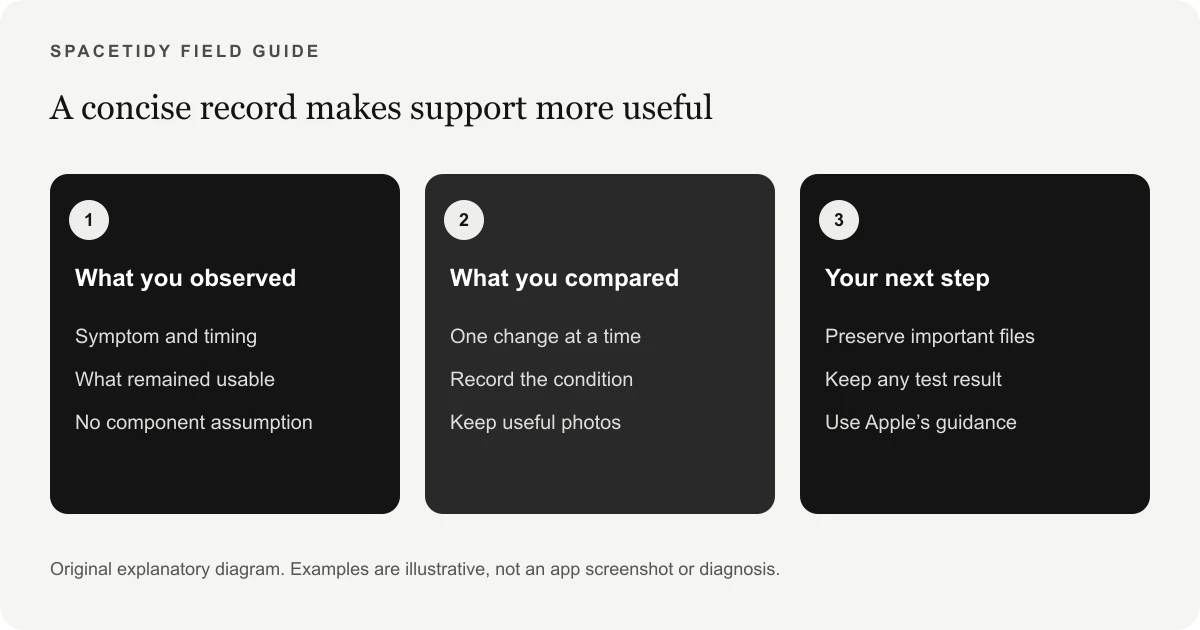
Use an external display as an access route, not a repair verdict
When a compatible external monitor already works, it can give you a practical route to save documents, check a backup and contact support. Keep the setup stable long enough to do those tasks. Start with current work, essential personal files and anything you would struggle to recreate. Verify that the destination is accessible and that a few representative files open there. A folder name that looks like a backup is less reassuring than an export or backup you have actually checked.
The external monitor comparison should be reported without overstating it. A normal external image does not by itself tell you whether the built-in panel, connection, configuration or another part of the display path is responsible. The same caution applies if both screens go dark: that observation does not identify a single cause. If the built-in image contains bands or only part of the screen is black, our display-lines checklist provides a better vocabulary for describing the symptom before seeking service.
Avoid changes that make the original problem harder to investigate
A black screen is frustrating, and it is tempting to run every suggested fix until something changes. The cost is that you may no longer know which step affected the outcome. Avoid deleting unfamiliar system or Library files, installing multiple repair apps or repeatedly resetting settings without a reason. If the Mac belongs to a workplace, check its support policy before altering managed software. Preserve the current evidence and the sequence of any steps you do take.
If Apple Support recommends a diagnostic test, our Apple Diagnostics guide explains its purpose and the difference between a hardware test and a storage scan. Once the machine is stable, a separate storage review can help with an actual capacity warning. SpaceTidy’s Mac tools cover supported folders and reviewed cleanup; they do not fix display hardware. You should be able to understand that boundary before deciding whether a paid cleanup feature has any relevance to your situation.
Plan around the work you need to recover
When the screen becomes usable again, it is easy to rush back to the task and forget the incident. Before starting a long session, save the current document, confirm where it is stored and check whether you have an independent recovery option. Prioritize material that changes frequently, such as the project you were editing, rather than spending the entire available window reorganizing old files. If you must continue working while arranging support, keep frequent deliberate saves and avoid relying on an unstable display for a time-critical presentation.
A second screen can be a temporary access route, but decide what that arrangement is suitable for. Being able to read a desktop is not the same as knowing the machine will remain reliable through a long export or meeting. Set a practical stopping point for troubleshooting and contact support when the observations justify it. You should not have to spend an entire day repeating a symptom in order to earn assistance. A clear account of the failure and the access you still have is enough to begin the conversation.
Common questions about a black screen
Does an audible fan or keyboard light prove the Mac has started normally? No: report the sign you actually observe and whether you can verify a usable desktop. Does a clean-looking external monitor prove the internal panel needs replacement? It is a useful comparison, but not a complete diagnosis. Does every black screen require reinstalling macOS? Follow the support route for the actual condition rather than assuming that a reinstall is the first step for every blank display.
Should you buy a storage cleaner to fix the image? SpaceTidy does not offer that repair. If a separate capacity warning exists after reliable access returns, a chosen-folder scan can help you inspect files. Keep hardware troubleshooting, recovery and housekeeping as distinct decisions. That makes it easier to evaluate whether an action has helped and prevents an unrelated cleanup result from being mistaken for proof that the original display fault has been resolved. Preserve your observations and ask support to interpret the remaining symptom.
If the Mac works through an external display
Back up important files while you can use the machine. Record whether the built-in display fails before login or only later, and whether moving the lid changes the symptom. Do not repeatedly flex the lid to test it.
An external display working does not establish which internal part is responsible. Persistent built-in display problems deserve service assessment rather than a promise that clearing caches will solve them.
Where SpaceTidy fits
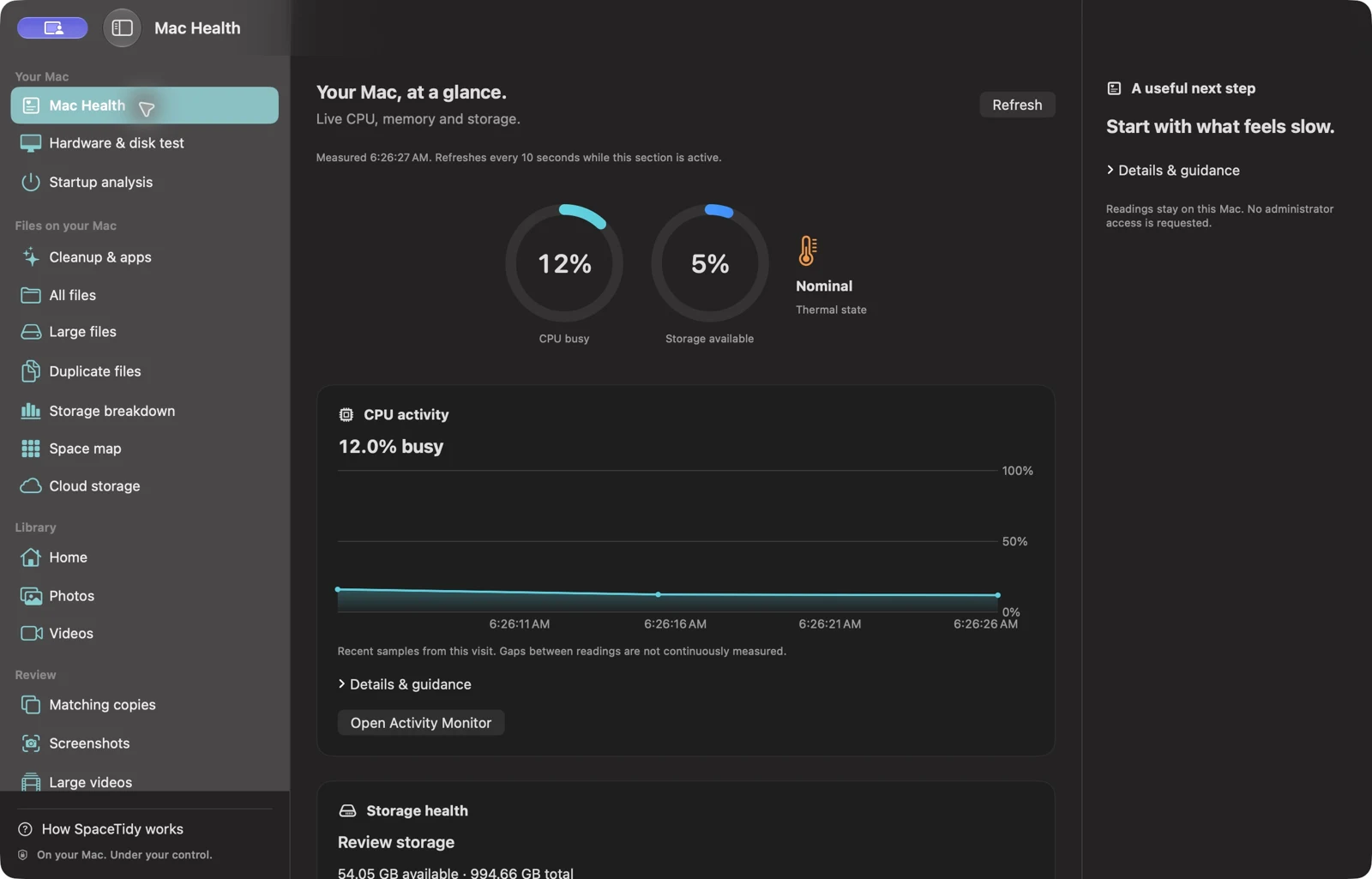
SpaceTidy cannot repair a black screen. Once the Mac is usable, its storage maps can help investigate a separate lack-of-space problem in folders you select.
Keep those tasks separate: recover reliable access and protect your files first, then review storage if needed. A cleaner subscription is not a substitute for a hardware diagnosis.
Sources & further reading
Apple menu names and options can vary by software version. These official guides explain the system behavior referenced above.