Confirm which display is affected
Note whether only the Touch Bar flickers, whether its controls still respond and whether the main display remains normal. Record the Mac model, macOS version and the app in use.
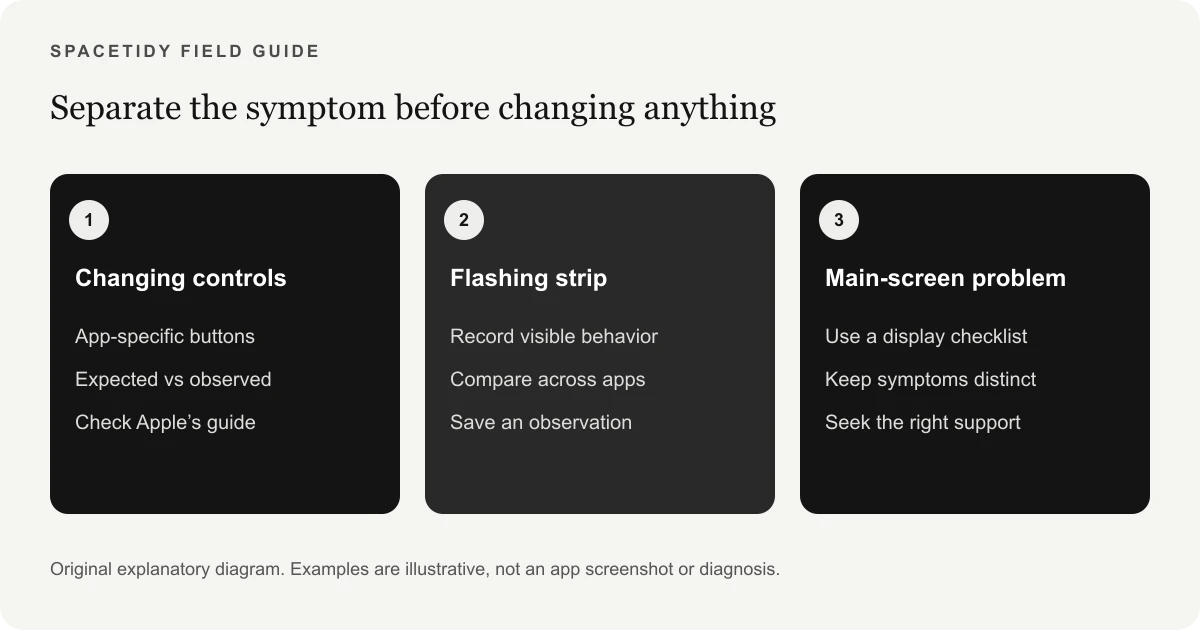
Some Touch Bar content changes with the active app. Changing controls is not itself flickering. A video of repeated flashes or an unresponsive strip can help explain the actual symptom.
Compare one app with another
Save work and switch between a built-in app and the app where you first noticed the problem. If it occurs in one app, check that app’s support guidance and updates.
Review Touch Bar settings using Apple’s guide for your macOS version. A setting may explain missing controls, but it should not be presented as a repair for persistent physical flashing.
Restart and observe a baseline
When the Mac responds normally, save work and restart it. Note whether the issue returns immediately or only after opening a particular app or waking from sleep.
Apple’s safe-mode guidance can help investigate software loaded during startup. Use the correct steps for your processor, then compare behavior after a normal restart. A difference is a clue, not a conclusive hardware test.
For a problem across the main display, see lines on a MacBook screen. If Apple recommends a hardware check, follow how to run diagnostics on Mac.
Describe the difference between changing controls and flashing pixels
A Touch Bar can show different buttons as you switch applications or move between tasks. That is why a report of “the strip keeps changing” needs more detail before it can be treated as a fault. Describe whether the controls change in a way that follows the active app, whether the strip flashes unexpectedly or whether part of it remains bright or dark. Also note whether touching a visible control still performs its expected action. These observations help distinguish a confusing interface from an unstable display.
Do not group every display symptom under the same keyword. Flicker across the main panel, lines through a window and an unresponsive Touch Bar are separate reports. If the main panel is affected, use the MacBook display-lines guide or black-screen guide as appropriate. A precise description saves time when reading Apple documentation or talking with support. It also reduces the chance that you follow a popular fix written for a different symptom simply because the article mentions a MacBook Pro.
Build a short, repeatable comparison
Choose a simple comparison that does not put important work at risk. Save your documents, switch from the app where the symptom appeared to a built-in app, and note whether the behavior remains. Keep the rest of the setup unchanged during that comparison. If the issue follows one application, record the app name and version for its developer. If it appears regardless of the app, that is useful information for a broader support discussion, without proving that the cause is physical.
A comparison should answer one question at a time. Opening ten apps, unplugging a display and changing keyboard settings in the same minute produces a less useful result. Write down the condition and what you observed in a couple of lines. If the issue disappears, say that it was not present during that observation rather than declaring it permanently fixed. Intermittent problems can be difficult to assess, and a careful account is more helpful than a confident claim based on a short period of normal operation.
Review controls without treating preferences as a hardware repair
If your concern is missing or unexpected controls, consult Apple’s Touch Bar guide for your software version. First decide what you expected to see: app-specific buttons, an expanded set of system controls or a particular shortcut. Comparing that expectation with the documented behavior can resolve a usability question. Keep a note of any preference you change so you can restore it if it does not address the problem you meant to investigate.
Persistent flashing, a bright band or an unreadable section is a different concern from choosing which buttons appear. A preference change should not be advertised as repairing a failing component. If an article promises that removing large files will correct a flickering strip, ask what evidence connects the two. Free space and display behavior are different measurements. You can investigate both if both are problems, but a successful storage cleanup does not establish that the Touch Bar has been repaired.
Keep software investigation bounded
If the behavior started in one app, check its own update and support resources before making broader changes. Describe whether it occurs in every document or only one project. A developer can use that distinction to suggest an appropriate next step. If you already have a pending operating-system update, read its requirements and protect your work before installing it; do not begin a major update solely because an unrelated cleanup guide tells you that every problem must be out-of-date software.
For a startup-software investigation, follow Apple’s safe-mode guide using the processor-specific procedure. Record whether the symptom is present under that condition and after returning to normal use. That comparison can inform further troubleshooting, but it does not tell you that every startup item is unnecessary. Avoid deleting launch files or disabling unfamiliar workplace software at random. A controlled software check is meant to improve your evidence, not to turn a single display complaint into a broad and unreviewed system overhaul.
Document persistent flicker for a service assessment
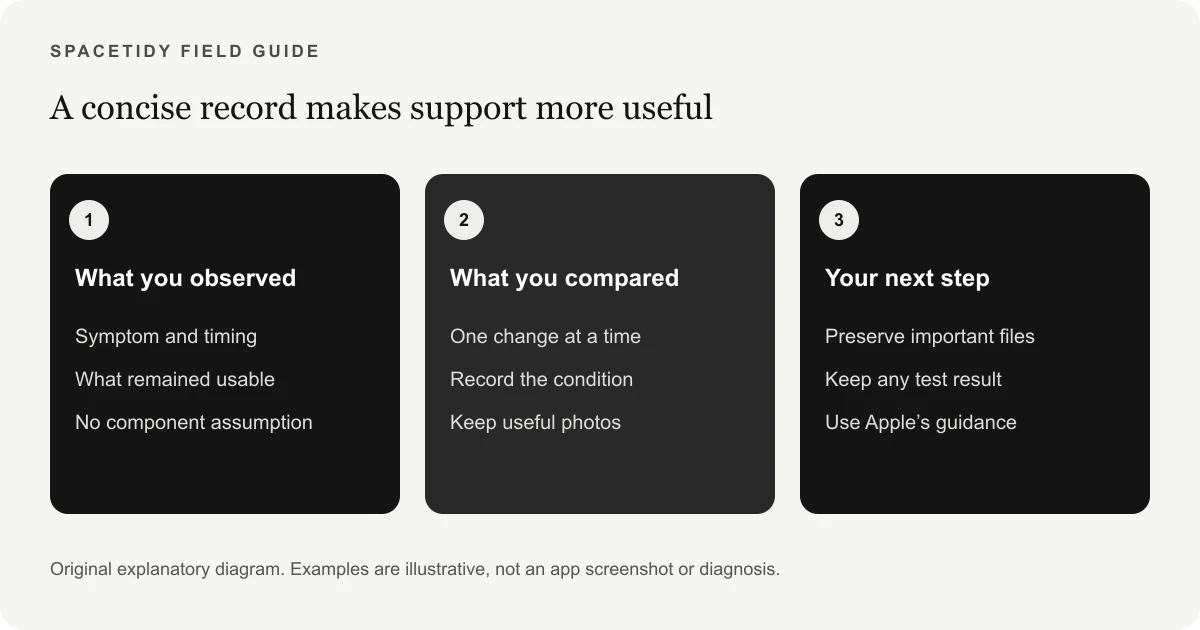
A short video taken with another device can show a flashing strip more clearly than a written description alone. Keep the framing focused on the symptom and avoid exposing passwords, private messages or documents on the main display. Note whether the recording was made before login, after waking or inside a particular application. If the symptom changes during ordinary use, record that fact without repeatedly stressing the machine just to capture a dramatic example.
Bring the recording and your comparison notes to Apple Support. Mention anything that remains functional, such as responsive buttons or normal main-display behavior. If there has been relevant damage or a repair, disclose it rather than leaving the technician to guess. Ask for the appropriate service route for the model. You do not need to diagnose a specific component yourself, and you should not order parts based only on a superficially similar video posted by another MacBook owner. Similar-looking symptoms can still need different assessments.
Use Mac maintenance tools for separate maintenance questions
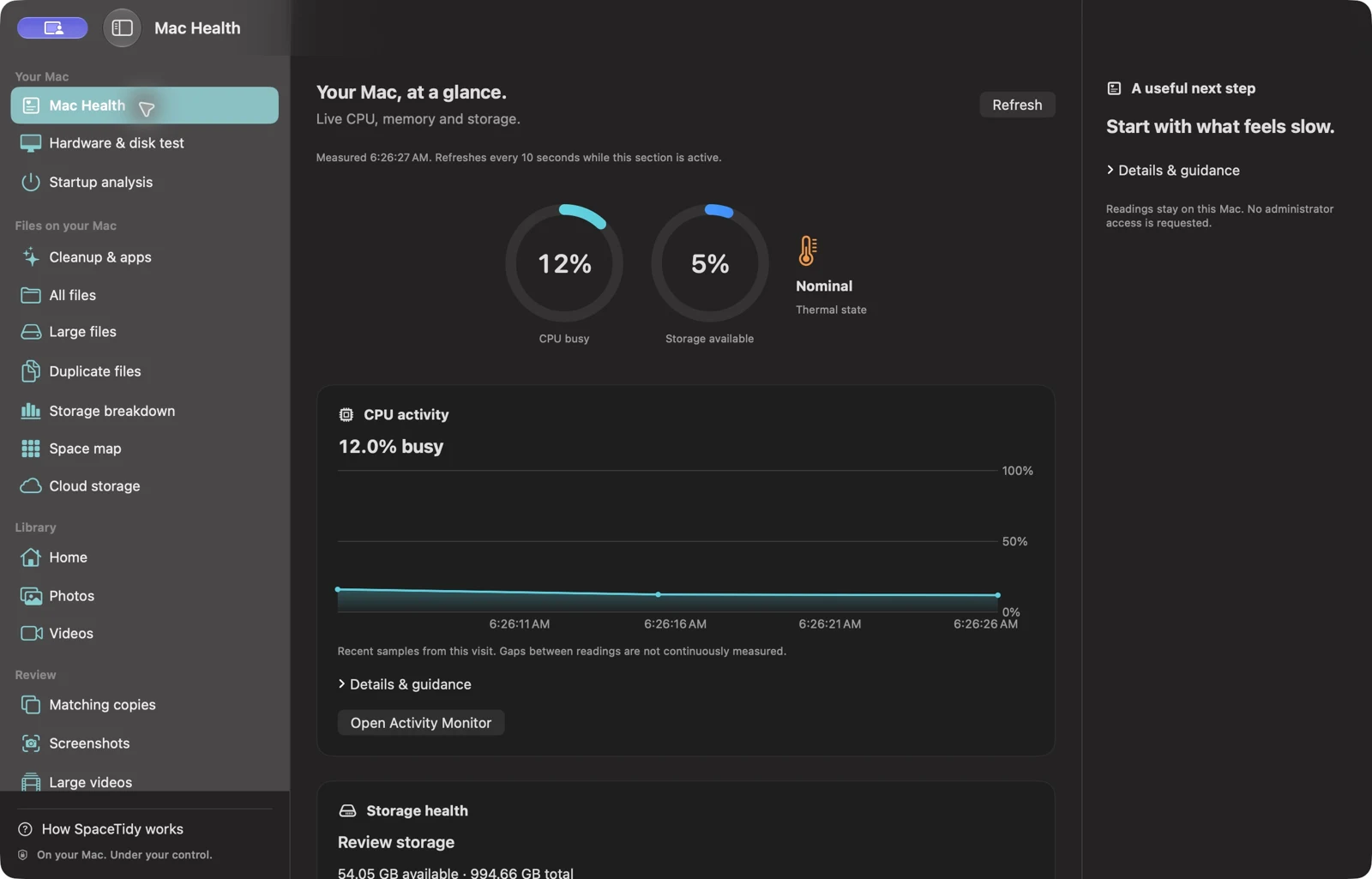
You may discover unrelated issues while preparing the Mac for support: an almost-full disk, apps you no longer use or an unfamiliar item that opens at login. Those deserve their own review after you have saved work and stabilized access. SpaceTidy for Mac includes free basic storage scans and maps. Pro adds supported application-related-file review, expanded junk findings, eligible Mac App Store update checks and startup analysis. Those tools help describe and review the workspace; they are not a Touch Bar repair kit.
The startup view also does not replace every control provided by macOS. Where a management change belongs in Apple’s settings, the app hands you to the native interface. Similarly, an update comparison is not an automatic installation or a guarantee that every app has a supported update source. Read the Free and Pro feature list for scope, and use the Mac storage workflow if capacity is the separate problem you want to solve. Keeping these purposes clear makes both maintenance and troubleshooting more useful.
A comparison log you can keep in two minutes
Use four short entries: condition, visible behavior, response to input and what happened next. For example, you might write that a particular app was active, the left side of the strip flashed, a control still responded and the symptom continued after switching apps. That example illustrates how to structure a report; it is not a diagnosis or a result from a tested device. Your own observations may be different, and they should remain the center of the investigation.
Keep the log lightweight enough that you will actually use it. A timestamp and a few words can distinguish two incidents that otherwise blur together in memory. If the strip behaves normally after a restart, say when you checked it and under which conditions. If it returns later, add the new observation instead of overwriting the earlier one. This preserves the difference between a temporary change and a lasting improvement and gives support a clearer view of an intermittent issue without requiring you to write pages of technical speculation.
Questions to settle before making broader changes
Are you trying to restore missing controls or stop actual flashing? Does the problem follow an application or remain across apps? Can you save work and restart normally? These questions determine whether you should begin with interface guidance, an app developer or Apple’s hardware-support route. If the strip becomes difficult to read or use, do not let the search for a perfect internet explanation delay a service assessment. You can ask for help with a symptom you cannot diagnose yourself.
Do not assume that a preference reset, a startup-item change or a Terminal command is harmless simply because it appears in a short online tip. Understand the intended effect and preserve your current setup before following technical instructions. This article deliberately focuses on observation, documented guidance and a support handoff rather than prescribing undocumented process commands. Once the Touch Bar issue has an appropriate next step, you can decide separately whether ordinary app updates or reviewed storage cleanup would improve the rest of your workspace.
Keep one final distinction in mind: an observed improvement and an identified cause are different outcomes. If a normal restart makes the strip readable again, record that useful result without claiming you have established which component or application caused the problem. If the symptom returns, the earlier note remains valuable. This makes a later support conversation clearer and helps you avoid repeating changes that provided only temporary relief without explaining the underlying issue.
When to ask for service
If flicker persists or makes the strip difficult to use, contact Apple Support with the recording and observations. Mention whether the issue also appears without your usual apps open.
Avoid running unfamiliar Terminal commands simply because they mention Touch Bar processes. Restarting a process cannot establish that a hardware issue has been repaired.
Keep cleanup claims realistic
SpaceTidy does not repair the Touch Bar. Mac Pro tools include startup analysis, App Store update checks for eligible apps and reviewed cleanup in selected folders; none is a Touch Bar repair tool.
If your separate concern is storage, scan familiar folders and inspect the results. Do not remove unknown Library files in an attempt to stop a display symptom.
Sources & further reading
Apple menu names and options can vary by software version. These official guides explain the system behavior referenced above.