
Before you start
Save your work and shut down. Disconnect accessories except essential input devices, a display, Ethernet and power. Place the Mac on a ventilated surface. If the Mac still works normally, check for software updates first.
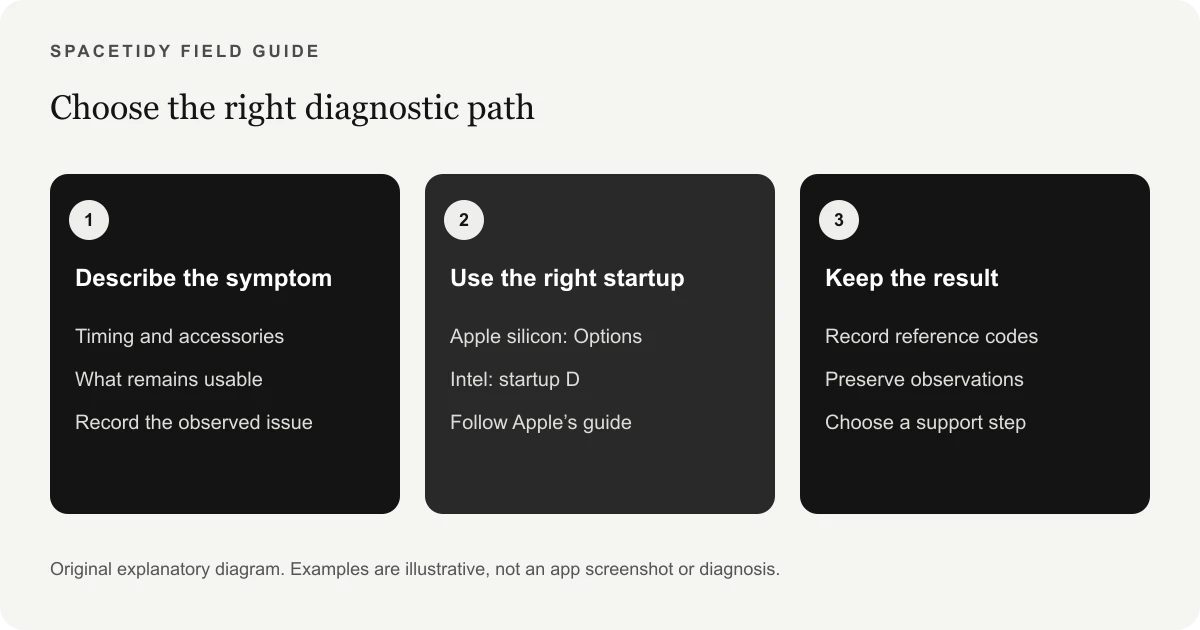
Write down the symptom: when it happens, which accessories are connected and whether it affects one app or the whole computer. This context makes a test result more useful than an isolated code.
Start the test for your Mac
On Apple silicon: shut down, press and hold the power button until startup options show Options, release the button, then hold Command-D until the Mac restarts.
On Intel: turn on and immediately hold D; try Option-D if D does not start the test. Follow the onscreen instructions. See Apple’s complete diagnostic instructions for model-specific prompts.
Understand Apple hardware test results
Keep any reference code and compare it with Apple’s reference-code list. Provide the code and your symptom notes when arranging service. A clean test does not explain every intermittent problem.
Repeatable symptoms still matter. Note whether the problem appears before login, after waking or only with an external display. Avoid repeatedly changing settings between tests: you want to know which change affected the result.
For a blank display, follow the Mac black-screen checklist. For visible bands or stripes, use the MacBook display-lines guide.
Decide what question you want the test to answer
Before starting, describe the problem in one ordinary sentence. “The screen goes black after waking when a dock is attached” is more actionable than “my Mac is broken.” Include what you were doing, what you expected and what happened instead. If the behavior is intermittent, note roughly how often you encounter it during normal use. You do not need to provoke a failure repeatedly to produce useful evidence. A short account of a real incident is preferable to hours spent changing settings without keeping track of the changes.
Next, separate three questions: does the computer have a suspected hardware fault, does a particular application behave incorrectly, or is the computer running short of usable storage? Those questions can overlap, but they require different evidence. A successful hardware test does not mean a troublesome app is configured correctly. A large Downloads folder does not explain every unexpected restart. Use the Apple Diagnostics instructions for the hardware branch, the app developer’s support resources for app-specific behavior and a storage review when the actual warning concerns capacity.
Prepare a useful diagnostic record
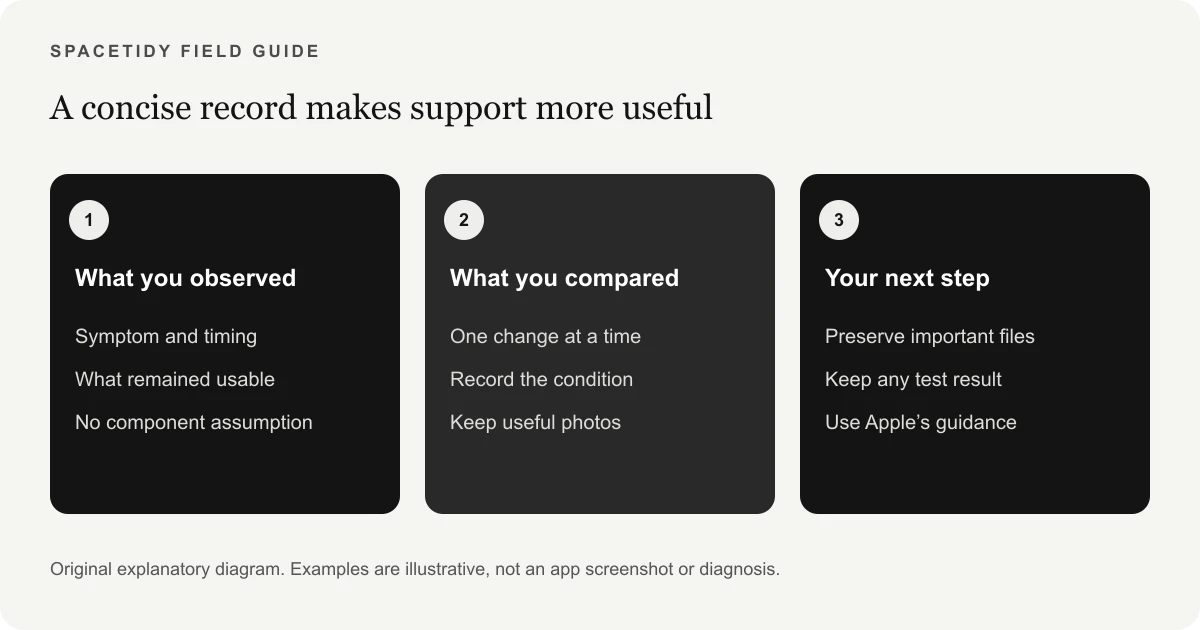
Create a simple note before restarting, preferably somewhere you can read from another device. Include the Mac model, software version if available, date of the incident and connected accessories. Record the exact wording of an error instead of relying on memory. If you take a photograph, frame the relevant screen and avoid exposing documents, account details or other private information. This preparation also helps if you later need to describe the problem over the phone while the affected Mac is unavailable.
Keep observations separate from interpretations. “The external monitor still showed the desktop” is an observation; “the internal display cable has failed” is a diagnosis you may not be equipped to make. Likewise, “the app stopped responding during export” is more precise than “the processor failed.” Write down what you could see or reproduce and leave room for a technician to interpret it. A good diagnostic record can be brief: symptom, timing, accessories, result and any reference code. You are building a usable handoff, not a complicated maintenance diary.
If the test does not start as expected
First check whether you followed the procedure for the correct processor family. Apple silicon and Intel startup sequences differ, so repeating the other sequence is unlikely to clarify the situation. Read the current Apple instructions on a second device and compare the stage you reached with the stage described. Was the Mac fully shut down? Did startup options appear? Did you get a language screen, network request or progress indicator? Recording that stopping point is more useful than reporting only that diagnostics “did not work.”
Do not substitute unrelated keyboard shortcuts, downloaded repair utilities or instructions intended for another model just to reach a different screen. If the computer instead starts to a blank display, move to the black-screen troubleshooting guide and Apple’s corresponding support path. If the Mac cannot reliably power on, diagnosis may need to begin with power or service assistance. A test you cannot start has not produced a passing result, and it does not justify assuming that the hardware is healthy.
Read results without turning them into a guarantee
Treat the outcome as one piece of evidence gathered under particular conditions. A reference code gives support a starting point; it is not necessarily a complete list of every issue affecting your workflow. An intermittent symptom might not occur during the session. A problem that depends on a specific accessory, project or application may also need a separate investigation. The practical question is whether the result changes your next step, rather than whether you can label the whole machine permanently good or bad.
For example, imagine a Mac that completes a diagnostic session but still shows lines across its built-in display after waking. Keep the result, record the display symptom and seek the appropriate follow-up rather than dismissing the observation. Our guide to lines on a MacBook screen explains how to describe that situation. Conversely, do not keep repeating the same test simply to obtain the answer you hoped for. Once you have a useful record, follow the indicated support route and preserve time for the work you actually need the computer to do.
Prepare for a support conversation
Bring the concise note, the reference codes and any relevant photograph to the support conversation. Explain what remains usable: can you sign in, access files or work through an external display? Mention whether the issue affects every project or one particular task. Tell support about recent repairs or a relevant change you already observed, without assuming that the timing proves a cause. If you have tried a step, describe its result so the next person does not have to reconstruct your investigation from the beginning.
Before a service appointment or a major recovery procedure, consider the information you need to protect and whether your current backup is usable. Check a few important files in the backup destination rather than relying only on a successful-looking notification. Keep work credentials and personal details out of public forum posts. If the computer belongs to an employer or school, follow the organization’s device-support process before changing its setup. These are practical preparations for getting help; they do not require installing a cleaner or creating an account with SpaceTidy.
Use storage and health views for the questions they can answer
A hardware investigation can reveal a separate housekeeping problem. Perhaps you can use the Mac normally, but a large video export cannot finish because the destination is nearly full. In that case, review the destination and familiar folders as a separate task. The Mac storage guide explains how to start with the overall storage view and then inspect individual files. Removing a completed export may help with capacity, but it should not be described as repairing a display, battery or logic-board fault.
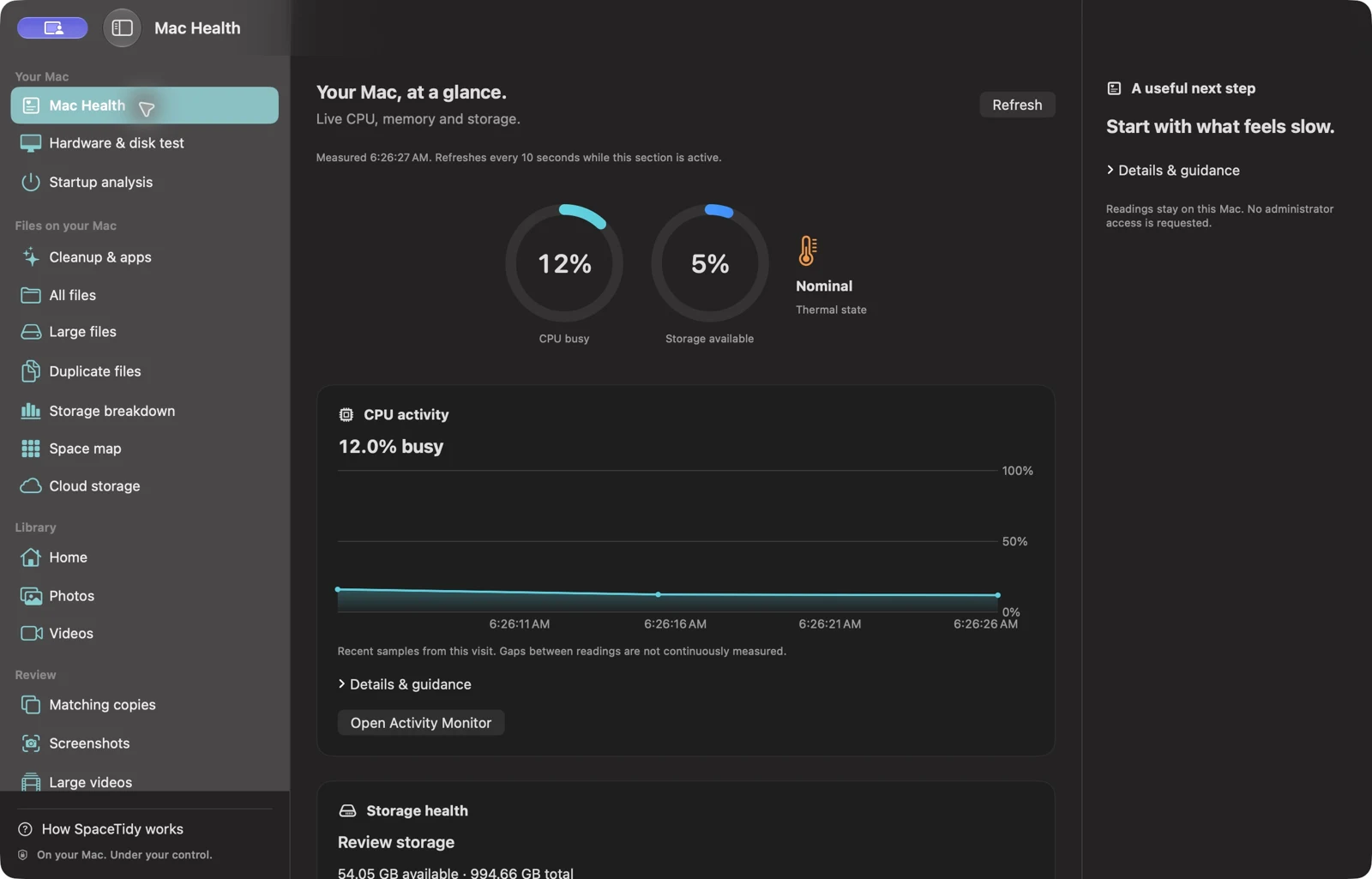
SpaceTidy for Mac offers free basic folder scanning, visual maps and basic health charts. Pro adds advanced analysis and reviewed tools, including supported junk review, application-related files and startup information. Those views can help you understand your workspace without promising a universal performance fix. They also do not replace the built-in diagnostic test. Choose the tool that answers your present question, make one informed decision and check the result. You can compare the current Free and Pro features before deciding whether advanced storage work is useful for you.
A practical example: an export fails during a busy afternoon
Imagine that a video export stops while a second app is also busy. First save what you can and capture the actual error. If the message specifically concerns the destination’s free space, investigate that capacity warning. If the Mac restarts unexpectedly or repeatedly shows a hardware-related symptom, record that behavior for a different support path. Do not label either situation a hardware failure simply because the computer was working hard. A useful investigation follows the evidence in front of you rather than the most alarming possible explanation.
Suppose the folder review reveals several completed exports that are no longer needed. Checking those files and making a reviewed cleanup decision may resolve the capacity issue. It does not prove that unrelated restarts are fixed. If you also ran Apple Diagnostics, keep that result with the incident notes and assess the next normal work session. An ordinary workflow that succeeds provides context, but one successful export is not a permanent certification. Keep the distinction between a task you completed, a symptom you observed and a diagnosis that still needs support.
Questions worth answering before you finish
Can you find the diagnostic result again? Do you know which accessories were connected and which symptom you wanted to investigate? Have you preserved any files you would need if the Mac became unavailable? These checks make the session useful even if it did not identify a clear cause. End with a concrete next step, such as contacting support, checking one application’s documentation or returning to normal use while watching for a specific recurrence. Avoid leaving yourself with a vague instruction to keep trying random fixes.
You also do not need to purchase software just to run Apple’s built-in diagnostic process. SpaceTidy’s paid tools are optional tools for advanced file and storage work, with their own scope and review requirements. If your question is strictly about a suspected component fault, the relevant route remains Apple’s diagnostic and service guidance. If your question is about reclaiming space, use a storage workflow that helps you inspect actual files. Matching the action to the question is the most valuable result of this preparation.
Hardware diagnostics versus storage analysis
Apple Diagnostics is for suspected hardware issues. A folder storage map helps you understand files; it cannot test a display cable, repair a logic board or replace Apple’s diagnostic process.
SpaceTidy provides basic Mac Health charts and free chosen-folder scanning. Pro adds advanced analysis and reviewed cleanup tools. Its optimization dashboard connects supported tools; it does not repair hardware or automatically tune macOS.
What to do next
Keep a backup before undertaking repairs or major system changes. If the machine becomes unusable, follow Apple’s recovery or service guidance rather than deleting unfamiliar files as a troubleshooting experiment.
For a Mac that runs normally but lacks storage, continue with our free-up-space guide. For persistent display, power or hardware symptoms, use the test record and your notes with Apple Support.
Sources & further reading
Apple menu names and options can vary by software version. These official guides explain the system behavior referenced above.