
Search Safari history
Open Safari and choose History > Show All History. Enter a website name or distinctive page-title word in the search field. Apple’s Safari history guide describes the current controls.
Try a distinctive word from the page or the website name rather than a generic term. The history list is a record of browsing activity available to that browser, not a complete record of everything done on the Mac.
Know what history does not contain
A missing history entry does not prove that a page was never visited. Browser choice, private sessions, removed entries and retention settings can affect what is available.
If you used another browser, check its own History view. SpaceTidy does not recover missing browser history or provide a timeline of a person’s activity.
Distinguish history from downloaded files
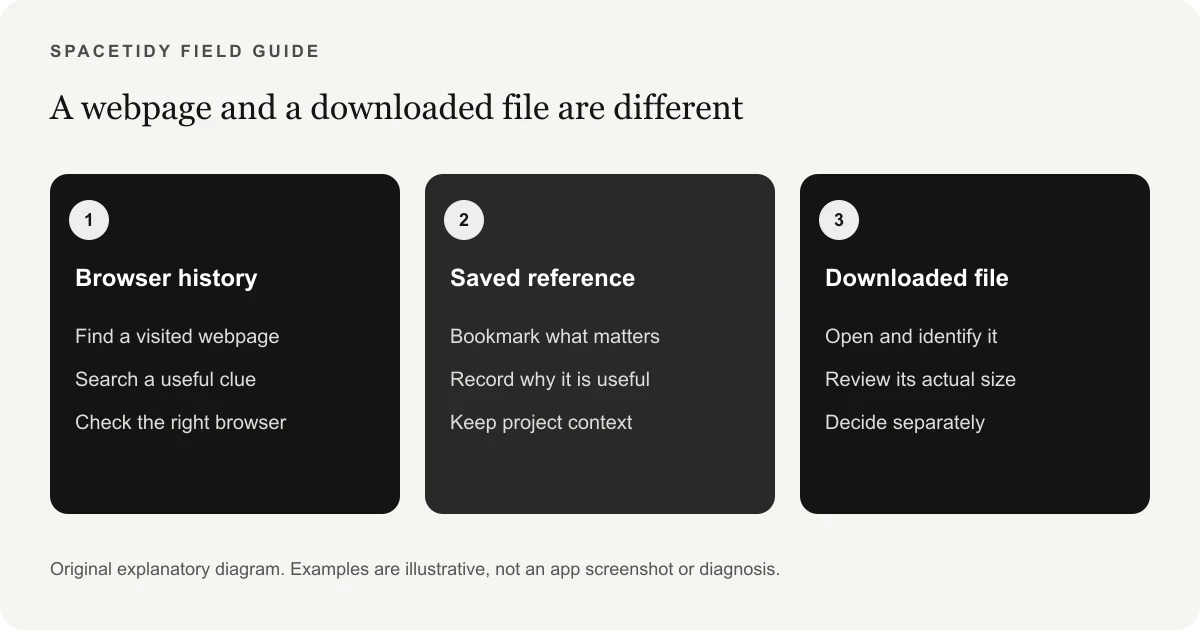
A history entry points to a webpage. A downloaded installer, PDF or video may remain on disk independently. Removing one does not establish that the other has been removed.
Look in the destination you chose for the download. Open the file and confirm its purpose before deciding whether to keep it; recognizable filenames are only a starting point.
For a capacity warning rather than a missing page, follow how to free up space on Mac. If the warning mentions iCloud, compare iCloud storage with device storage before removing local files.
Choose the browser and the question first
Before searching, recall which browser you were using when you visited the page. Safari history will not automatically serve as a universal record of every website opened in every application on the Mac. If you normally switch between browsers, begin with the one most likely to contain the visit. Also clarify what you need: the page itself, a downloaded file, an open tab or a bookmark you saved deliberately. Those goals can involve different places, even when they all began with the same website.
Try to remember a distinctive clue rather than the whole address. A product name, publication, unusual phrase from the page title or approximate day can narrow the search. Do not include private information in a public support request just to describe the page. If the Mac belongs to someone else, use history only with the appropriate permission. This guide is about finding your own useful references, not recovering another person’s deleted activity or creating a surveillance record of everything that happens on a device.
Search by a clue that distinguishes the page
Open Safari’s history search and begin with the website name or a distinctive word. If the first search is too broad, try a different clue rather than repeatedly scrolling through the same long list. A title may not match the phrase you remember from the page’s body. Search for the publisher or subject as an alternative. When you find a likely result, open it and check that it is the actual page you meant to revisit.
If the page no longer exists at its previous address, the history entry still may help you identify the original site or title. You can then use that site’s own search or contact its publisher if the material is important. Do not assume that a cached-looking title in history guarantees that the underlying content remains available online. A browser’s record and a publisher’s current website are separate things. Once you recover a useful reference, save a bookmark or a deliberate note rather than depending on a future search of incidental browsing activity.
Check recent tabs before searching an entire history
If you closed a page only a moment ago, a recently closed tab is often a more direct starting point than a broad search. Consult Apple’s guide to revisiting websites for Safari’s current menu options. Distinguish a closed tab from a window that remains open elsewhere in your workflow. The goal is to return to the page with the least unnecessary navigation, not to reconstruct a complete account of the day’s browsing.
For recurring research, separate temporary tabs from sources you intend to keep. A bookmark or a short project note provides a clearer purpose than leaving dozens of pages open indefinitely. Include enough context to remember why the reference matters. For example, a note explaining which instruction answered your question is more useful than a bare link with an ambiguous title. This is an organizational habit rather than a promise about browser recovery; a closed or missing session should still be investigated using the browser’s own documented controls.
Understand why a visit might not be visible
An absent entry is not proof that a page was never opened. The browser used, the kind of session, retention settings and later removal can affect what is visible. If you were signed into a different device or using a separate browser context, begin by checking that context rather than assuming the current history list is complete. Be cautious with tools that promise a perfect reconstruction without explaining where their data comes from or what access they require.
SpaceTidy does not recover deleted browsing history or provide a timeline of someone’s activity. Its selected-folder tools inspect accessible files you choose for storage review. That is a different capability from a forensic browser investigation. If your concern involves a work account, a compliance requirement or an incident, use the organization’s approved support route instead of treating a cleaner as an evidence-recovery tool. For ordinary personal research, the practical next step is usually to identify another clue or search the original website, rather than to keep running the same unsuccessful history query.
Find the downloaded file separately
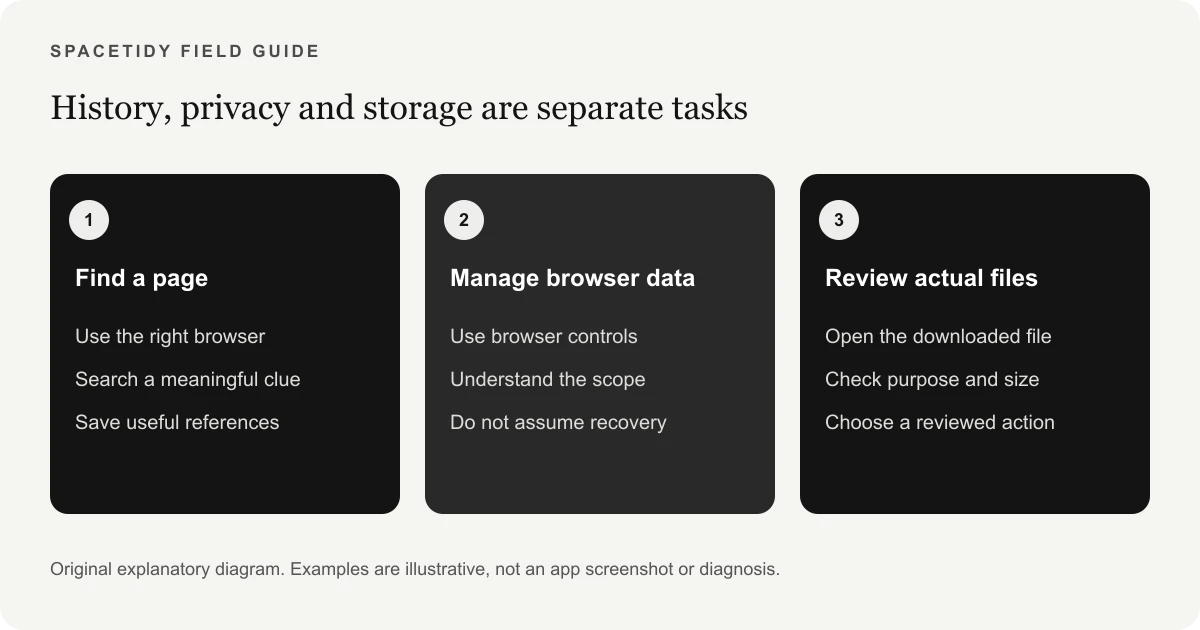
A webpage and a downloaded file are not the same object. You may revisit a software page and discover that the installer is already in a local folder, or find a PDF on disk even though you no longer see the page in history. Check the download destination you selected and search using a recognizable part of the filename if needed. Open the result and verify that it is the expected document or version before relying on it. Similar filenames alone are not enough to establish identity.
If you are trying to reclaim storage, focus on actual files that occupy it. Removing a reference from history does not establish that a large installer, recording or archive has been removed. Conversely, deleting a downloaded copy does not mean the browser forgets the page you visited. The Mac storage guide explains a file-first review. If the file is a video, the compression guide can help you decide whether a separate smaller copy suits the purpose before you remove the original.
Review Downloads without losing a useful reference
Start with a small group of files whose purpose you understand. A completed installer may be unnecessary, while an old-looking document could be the only copy of a receipt or reference you still need. Check the contents and the source before making a removal decision. If you want to keep a way back to the original website, save a bookmark separately. That lets you evaluate the downloaded file on its own merits instead of keeping every large download merely because its name reminds you of a useful page.
SpaceTidy’s Mac app offers free basic scans, maps and large-file discovery for folders you connect. Pro adds reviewed supported cleanup and advanced analysis, including expanded junk categories. It does not silently wipe your browser’s history as a side effect of those tools. Read the feature split to understand the boundary between inspecting files and making paid changes. No SpaceTidy account is required, and optional review of a local synced folder is not a connection to a cloud provider’s remote account.
Separate privacy decisions from storage decisions
You might want to remove a browsing reference for privacy even when it occupies little space, or retain the reference while removing a very large download. Make those decisions separately. Use the browser’s documented settings for history and website data, and inspect local files through the appropriate file tools. Do not assume that one action removes every trace of another. Accounts, sync settings, websites and organizations can each have their own records and retention behavior outside the scope of a local storage app.
Likewise, avoid presenting history removal as a guaranteed performance improvement. If your actual complaint is an app that stalls, a capacity warning or a network issue, define that symptom before changing data. The purpose of this article is to help you find a page and distinguish it from stored files. It is not a claim that erasing history makes every browser faster or removes all records of browsing. Clear scope helps you choose a useful action and avoid losing references that you meant to preserve.
Create a reference habit that survives a busy week
After finding an important page, put it somewhere intentional. A project bookmark, reading list entry or a short note can make the next visit easier. Include a recognizable title and, when useful, the reason you saved it. If you downloaded a companion document, keep its relationship to the reference clear without embedding sensitive account details in public filenames. Review old research materials when the project ends, so the system remains useful instead of becoming another folder full of unexplained files.
You do not need to organize your entire browsing life in one sitting. Begin with the page you were trying to recover, confirm that it answers the original question and decide whether it deserves a saved reference. Then handle any separate storage concern through a small reviewed batch of downloads. This keeps the work proportional to the need: find what helps, preserve what matters and remove only files you understand. A successful session is one where the reference is usable again, rather than one that produces the largest possible count of removed entries.
Review Downloads for storage
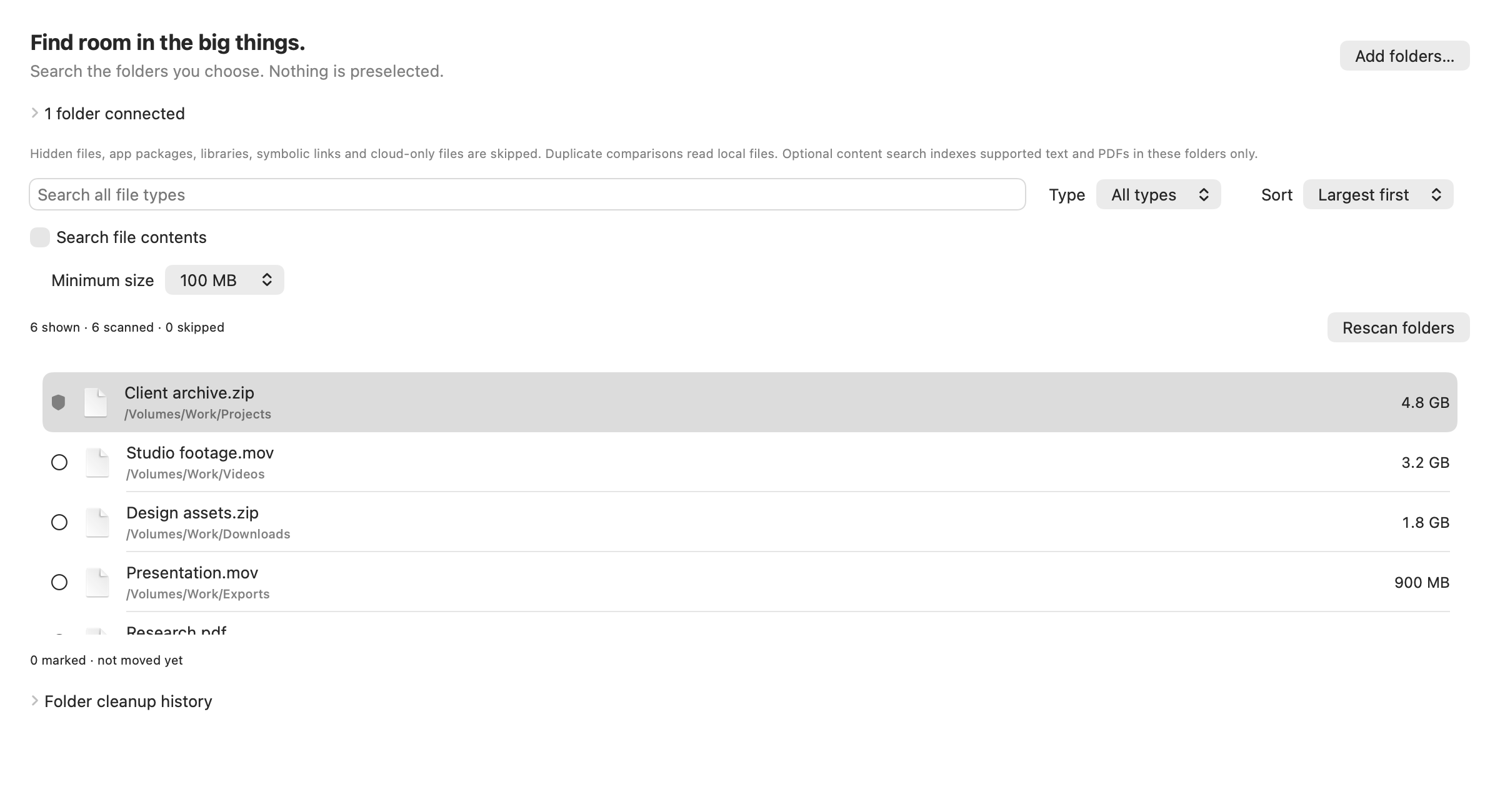
Group finished exports, old installers and archives into a review session. Confirm a backup or replacement source for important files, and keep anything required by an active project.
SpaceTidy can scan a Downloads folder you connect and show large files and duplicate contents for free. Pro adds reviewed cleanup and advanced junk rules; it does not silently clear browser history.
Choose the right next step
To revisit a useful site, bookmark it or keep a deliberate reference. To manage storage, inspect the actual files consuming space rather than clearing unrelated history as a shortcut.
No SpaceTidy account is required. Advanced analysis and cleanup require Pro, while supported basic scanning remains free. Apple and browser settings continue to control their own history and sync behavior.
Sources & further reading
Apple menu names and options can vary by software version. These official guides explain the system behavior referenced above.