Two views answer two different questions
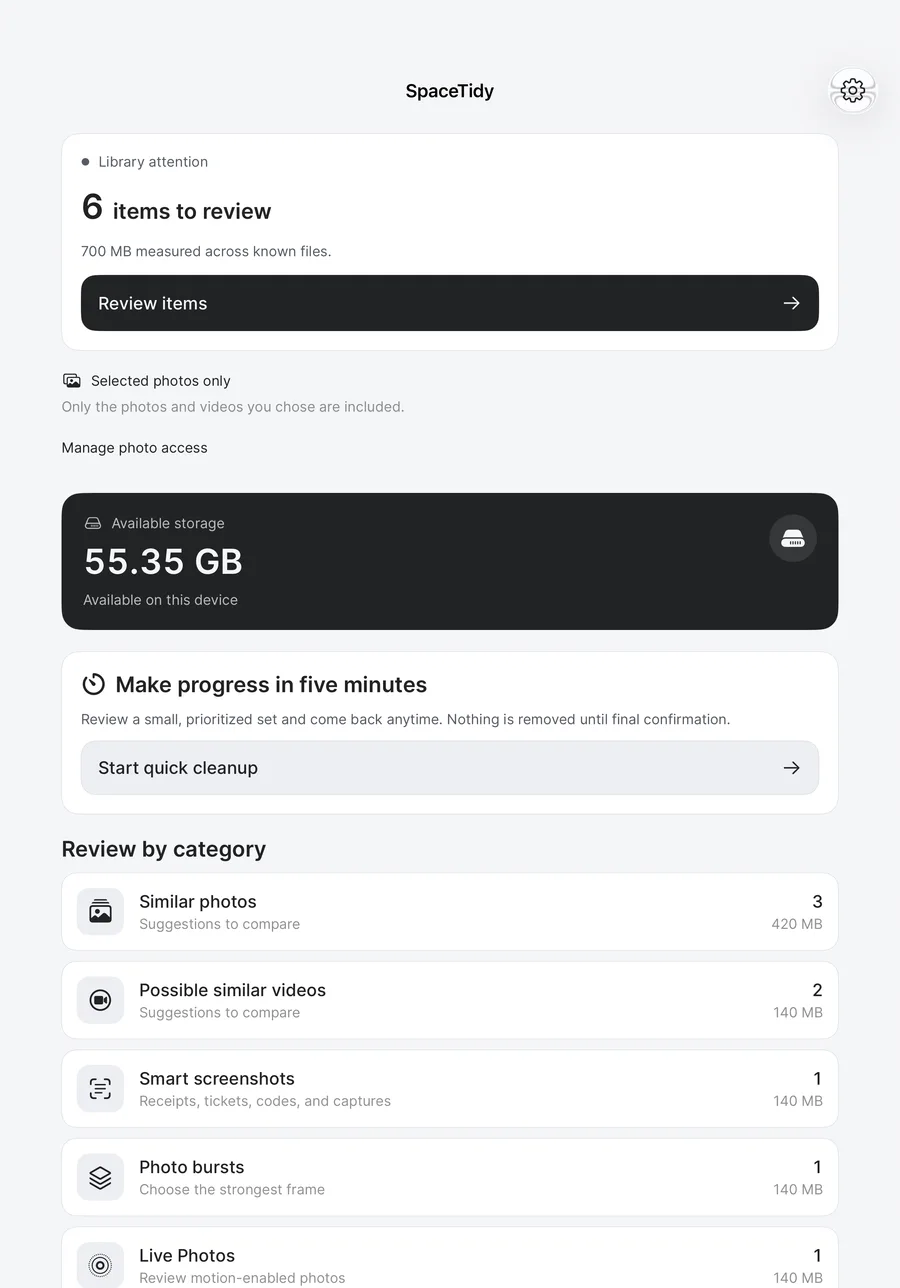
The actual iPad dashboard below shows a test library. Its device-level storage summary is different from the measured contents of a folder in Files & space. A folder map cannot account for every byte managed by iPadOS or iCloud; use the system settings to diagnose an overall storage warning.
- Check the device’s storage settings.
- Check iCloud storage separately.
- Use a selected-folder map only to investigate files within that scope.
Identify the storage that is full
Device storage is the capacity available on your iPhone, iPad or Mac. iCloud storage is an account-level allowance for data kept in Apple’s cloud services. Your devices can have different amounts available even when they use the same Apple Account.
On iPhone or iPad, inspect General → iPhone Storage or iPad Storage in Settings. On Mac, inspect General → Storage in System Settings. Check iCloud storage separately in your Apple Account settings. Write down which limit is causing the warning before choosing a remedy.
Understand photo optimization
Apple’s Optimize Mac Storage option can keep smaller local versions when the Mac needs room while preserving full-size originals in iCloud. iPhone and iPad have their own photo-storage optimization settings. This is a way to manage local copies, not an expansion of the device’s physical storage.
Optimization and synchronization are managed by Apple. Downloads, edits, connection quality and library processing can influence the space you see locally. Do not expect an immediate fixed reduction after changing a setting, and avoid deleting files inside the Photos library package.
Deletion can follow your synced library
With iCloud Photos, removing a photo or video can remove it from the library on other devices signed in to the same Apple Account. That is why a synced Mac library should not be treated as an independent backup of something you plan to delete on iPhone.
If you want an archive, export the originals to a separate destination and verify that the files open there. Check whether that destination has its own synchronization or deletion rules. An export that never completed is not a usable backup.
Read local storage charts in context
A device’s whole-volume chart and a chosen-folder map measure different scopes. SpaceTidy’s folder tools inspect accessible files you select. They do not promise to account for every system-managed byte or clear other apps’ caches on iOS.
A photo’s displayed size is also not a promise that exactly that amount will appear as free space after deletion. Recovery locations, local copies and ongoing sync can affect timing. Use system storage settings to check the overall result after processing settles.
Pick a next step that matches the problem
If local storage is tight but you want to keep the library, review optimization and large local downloads. If iCloud is full, inspect which synced categories and backups occupy the account. If files are simply disorganized, a photo or folder review may be useful even when neither storage limit is close.
SpaceTidy helps you compare photos and files across Mac, iPhone and iPad. It does not manage your iCloud plan or override Apple’s synchronization. Start with the scope you understand, protect an independent copy of important data, then review a small batch before making broader changes.
Sources & further reading
Apple menu names and options can vary by software version. These official guides explain the system behavior referenced above.