Read the actual review screen
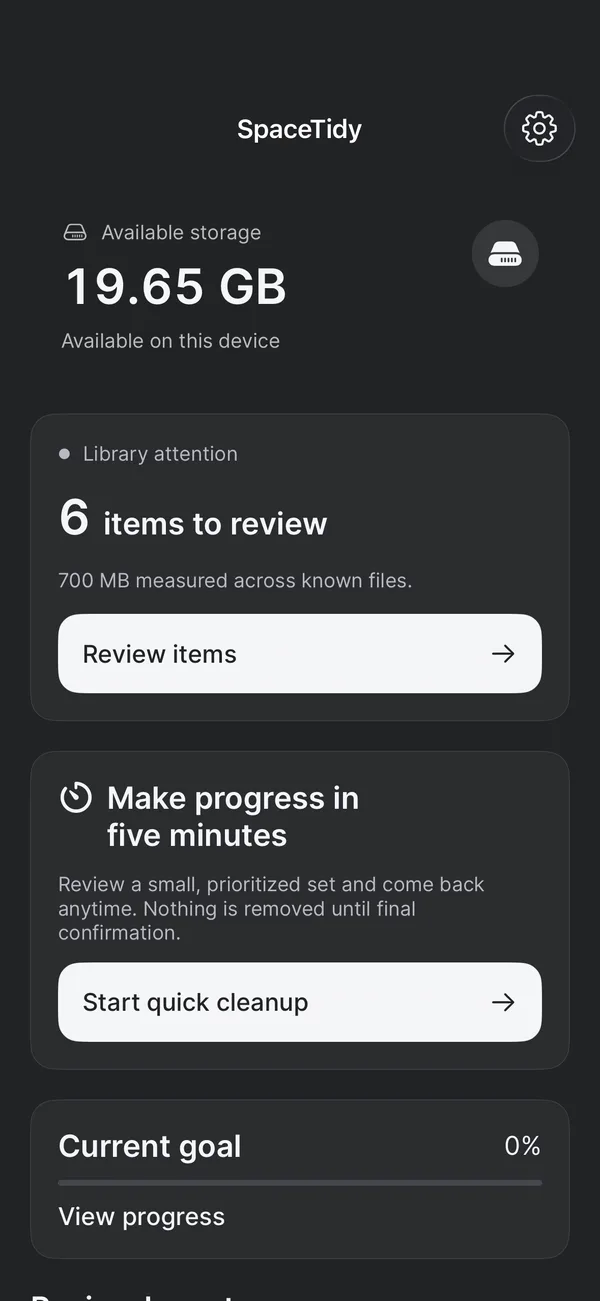
The app screen below uses demo-library data. A keeper badge identifies the copy being preserved; marking another item stages a choice rather than deleting it immediately. The test screen illustrates the workflow, not a claimed amount of space recovered from a customer library.
- Compare the full images, not only their thumbnails.
- Protect your keeper and inspect the marked selection in Final Review.
- Read Apple’s confirmation before approving library deletion.
Check Apple Photos first
Apple Photos includes a Duplicates collection for photos and videos it identifies as duplicates. Review a group before using Merge. If the collection is absent, that does not prove your library contains no duplicates: Apple documents that detection needs time and the right device conditions.
Menus can vary with your iOS or iPadOS version. Look under Utilities in Photos and consult Apple’s current guide if the location differs. You do not need to buy a cleanup tool simply to check the built-in duplicate review.
Distinguish duplicates from similar moments
A repeated import and a burst of different expressions are different decisions. Compare faces, focus, framing and the moment itself. One image may preserve a detail that is missing from the sharper-looking alternative.
Inspect the original view when a thumbnail is ambiguous. Check whether an image is edited, a favorite or part of a Live Photo you want to preserve. A review suggestion is a starting point; your reason for keeping a photograph may not be visible to software.
Work in small batches
Choose one category or date range and review a handful of groups. Mark the keeper first, then decide which extras you can let go. If the images are meaningful and the comparison is unclear, keep them until you have a better opportunity to review.
SpaceTidy offers photo review on iPhone, iPad and Mac with protected keepers and a final review step. Photo removal still requires Apple’s confirmation. The iPad interface gives the same review task more room; it does not make uncertain choices automatic.
Understand what happens across devices
With iCloud Photos, deleting an item can propagate to other devices using the same synced library. Do not treat deleting on iPhone as a way to preserve a separate copy on a synced Mac. Make and verify an independent export if you need an archive.
Recently Deleted offers recovery under Apple’s applicable rules, but it is not a long-term backup. Read the deletion prompt and check Apple’s guidance, especially if iCloud storage is over its limit. Avoid treating the recovery window as a reason to select everything.
Build a repeatable photo-review habit
After an event, review obvious accidental shots and repeated imports while the context is fresh. For screenshots, check whether receipts, booking details or instructions are still useful. A screenshot that looks disposable may contain information you need later.
Measure progress by how confident you feel about what remains. Storage estimates can change as Photos and iCloud finish processing. A short, careful session is a better foundation than chasing a promised percentage of space savings. For large clips you want to keep, read our guide to creating smaller video copies.
Sources & further reading
Apple menu names and options can vary by software version. These official guides explain the system behavior referenced above.